



Description
The Problem – VHS Tapes Are Deteriorating and Players Are Disappearing
This USB video capture card solves that problem. Consequently, you can transfer your VHS collection to digital files that will last for generations.
Capture Video and Audio – Complete VHS to Digital Conversion (vhs usb video capture card)
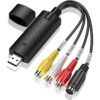
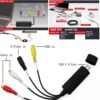
This capture card records both video and audio from your VCR. Specifically, it connects to your VCR’s RCA output (yellow for video, red and white for audio). Therefore, you capture the complete tape content. For instance, home videos with original sound are preserved. Similarly, old TV recordings keep their original audio track. As a result, your digital files are faithful copies of the original tapes.
The card converts analogue signals to digital format. Consequently, the files can be edited, shared, or burned to DVD.
USB Connection – Works with Your Computer
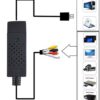
This capture card connects via USB. Specifically, it plugs into any Windows PC or laptop with a USB port. Therefore, no special hardware or internal installation is required. For instance, use it with a desktop computer in your home office. Similarly, use it with a laptop for portability. As a result, you can digitise tapes using equipment you already own.
The device is plug and play on many systems. Consequently, you can start capturing within minutes.
Easy to Use Software – Included for Simple Conversion
The capture card comes with compatible software (typically on CD or download link). Specifically, the software guides you through the capture process. Therefore, you do not need to be a tech expert. For instance, the software detects when a tape is playing. It records the video and audio directly to your hard drive. Similarly, it can save files as MP4, AVI, or other common formats. As a result, you can create digital files ready for editing or burning to DVD.
Follow the on-screen instructions. Consequently, even first-time users achieve good results.
Preserve Family Memories – Weddings, Birthdays, Holidays
The most common use for this device is preserving home videos. For example, transfer your wedding video to digital before the tape degrades. Similarly, convert childhood birthday parties, school plays, and holiday recordings. Furthermore, save videos of grandparents who are no longer with us. As a result, future generations can enjoy these precious moments.
Digital files can be shared with family members. Consequently, everyone can have a copy.
Transfer to DVD – Create Playable Discs (vhs usb video capture card)
Once captured, you can burn your videos to DVD. Specifically, use DVD burning software (often included or freely available). Therefore, you can create standard DVDs that play in any DVD player. For instance, make copies for each family member. Similarly, create a backup DVD for safe storage. As a result, you have both digital files and physical discs.
DVDs are more durable than VHS tapes. Consequently, they are a better long-term storage solution.
Compatible with VCRs and Camcorders
This capture card works with various video sources. Specifically:
-
VHS VCR players
-
VHS-C camcorders (with adapter)
-
Hi8 and Video8 camcorders
-
Betamax players
-
Any device with RCA composite output (yellow, red, white)
For example, convert old camcorder tapes from the 1990s. Similarly, digitise Betamax recordings from the 1980s. As a result, one device handles multiple tape formats.
Check your device’s outputs before purchasing. Consequently, ensure you have the correct cables.
Real Use Cases for UK Families (vhs usb video capture card)
Consider a family that finds a box of VHS tapes in the loft. The tapes contain footage from the 1980s and 1990s: childhood birthdays, Christmas mornings, and a family wedding. The family VCR still works, but for how long? They buy this USB capture card. Over a weekend, they digitise the most important tapes. For instance, the wedding video is converted and shared with all relatives. As a result, memories that were nearly lost are now preserved forever.
Similarly, a man inherits his parents’ VHS collection after they pass away. The tapes contain footage of his childhood and his parents when they were young. He wants to share these with his own children. He uses this capture card to convert the tapes to digital files. He then creates a shared online album for his siblings. As a result, the family history is accessible to everyone.
Furthermore, a local history society has old recordings of community events on VHS. The tapes are deteriorating, and the only VCR is failing. They use this capture card to digitise the entire collection. For example, school pageants, carnival parades, and local news clips are preserved. As a result, the community’s heritage is saved for future researchers.
No Technical Skills Required – Simple Setup
You do not need to be a computer expert. Specifically, the setup process is straightforward:
-
Install the software from the included CD or download.
-
Connect the capture card to your computer via USB.
-
Connect your VCR to the capture card using RCA cables.
-
Open the software and press play on your VCR.
-
Click “Record” in the software.
-
Stop recording when the tape ends.
For example, a grandparent can follow these steps with a little help. Similarly, a teenager can set it up independently. As a result, anyone can preserve their memories.
Compact and Portable – Store It Easily
The capture card is small. Specifically, it is approximately the size of a USB flash drive. Therefore, it fits easily in a drawer or laptop bag. For instance, keep it with your computer accessories. Similarly, take it to a relative’s house to digitise their tapes. As a result, it is always accessible when you need it.
The lightweight design adds no bulk. Consequently, you can carry it anywhere.
Save Money – DIY Digitisation vs Professional Services
Professional VHS to DVD transfer services charge £10-£20 per tape. If you have 20 tapes, that is £200-£400. This capture card costs a fraction of that. Specifically, a one-time purchase allows you to convert unlimited tapes. Therefore, it is far more economical. For instance, convert your entire collection for the price of a few professional transfers. Similarly, help family and friends digitise their tapes. As a result, you save significant money.
The DIY approach also gives you control. Consequently, you can choose which parts of each tape to keep.
Edit Your Videos – Cut, Trim, and Enhance
Once captured, your videos are digital files. Therefore, you can edit them using free software like:
-
Windows Video Editor (built into Windows 10/11)
-
iMovie (for Mac users)
-
DaVinci Resolve (free professional editor)
-
OpenShot (open source)
For example, trim the beginning and end of a tape. Remove shaky or blank sections. Add titles and chapter markers. Enhance brightness and contrast. As a result, you can create polished videos from raw captures.
Editing also allows you to share only the best parts. Consequently, family movies become more watchable.
Backup Your Memories – Cloud and External Drives (vhs usb video capture card)
Digital files can be copied. Once you have digital versions, create multiple backups. For example, save to an external hard drive. Upload to cloud storage like Google Drive or iCloud. Share with family members via USB stick. As a result, even if one copy is lost, your memories survive.
Unlike VHS tapes, digital files do not degrade over time. Consequently, they are the ultimate preservation method.
System Requirements – Check Before Buying
This capture card works with Windows PCs. Specifically, it typically requires:
-
Windows 7, 8, 10, or 11
-
USB 2.0 or 3.0 port
-
Available hard drive space (at least 10GB for longer captures)
-
CD/DVD drive for software installation (or download capability)
For Mac users, check compatibility before purchasing. Some cards are Windows-only. Consequently, verify your system.
Important Note – Copyright Respect (vhs usb video capture card)
Only convert tapes you own personally. Specifically, do not copy copyrighted commercial movies. For instance, a store-bought VHS of a Hollywood film is protected. Converting it would violate copyright law. However, home videos of family events are yours to preserve. As a result, use this device responsibly.
Check your local copyright laws. Consequently, stay within legal boundaries.
This VHS USB video capture card to DVD converter is supplied by Sellertree, a UK-based online seller of practical media conversion and preservation essentials.
BULLET POINTS
✅ Convert VHS to digital – preserve old home videos before tapes degrade
✅ Captures video and audio – RCA composite input (yellow, red, white)
✅ USB connection – works with Windows PC or laptop, no internal hardware
✅ Easy to use software – included, guides you through capture process
✅ Save as digital files – MP4, AVI, or other common formats
✅ Transfer to DVD – burn discs that play in any DVD player
✅ Compatible with VCRs and camcorders – VHS, VHS-C, Hi8, Video8, Betamax
✅ Save money – one-time purchase vs expensive professional transfer services
SPECIFICATIONS TABLE
| Feature | Detail |
|---|---|
| Product type | USB video capture card |
| Input | RCA composite (yellow video, red/white audio) |
| Output | USB 2.0 / 3.0 |
| Compatibility | Windows PC (7,8,10,11) |
| Capture format | MP4, AVI, or similar (software dependent) |
| Software included | Yes (CD or download link) |
| Use case | VHS, VHS-C, Hi8, Video8, Betamax to digital |
| Not for | Commercial copyrighted movies |
| Dimensions | Compact (approx. USB size) |
HOW TO USE (vhs usb video capture card)
-
Install the included software on your Windows PC (from CD or download).
-
Connect the capture card to your computer via USB.
-
Connect your VCR’s RCA outputs (yellow, red, white) to the capture card’s inputs.
-
Open the capture software on your computer.
-
Press play on your VCR.
-
Click “Record” in the software to begin capturing.
-
Let the tape play to the end, then click “Stop” in the software.
-
Save the captured file to your hard drive in MP4 or AVI format.
-
Repeat for each tape you wish to convert.
-
Optionally, burn the files to DVD using DVD creation software.